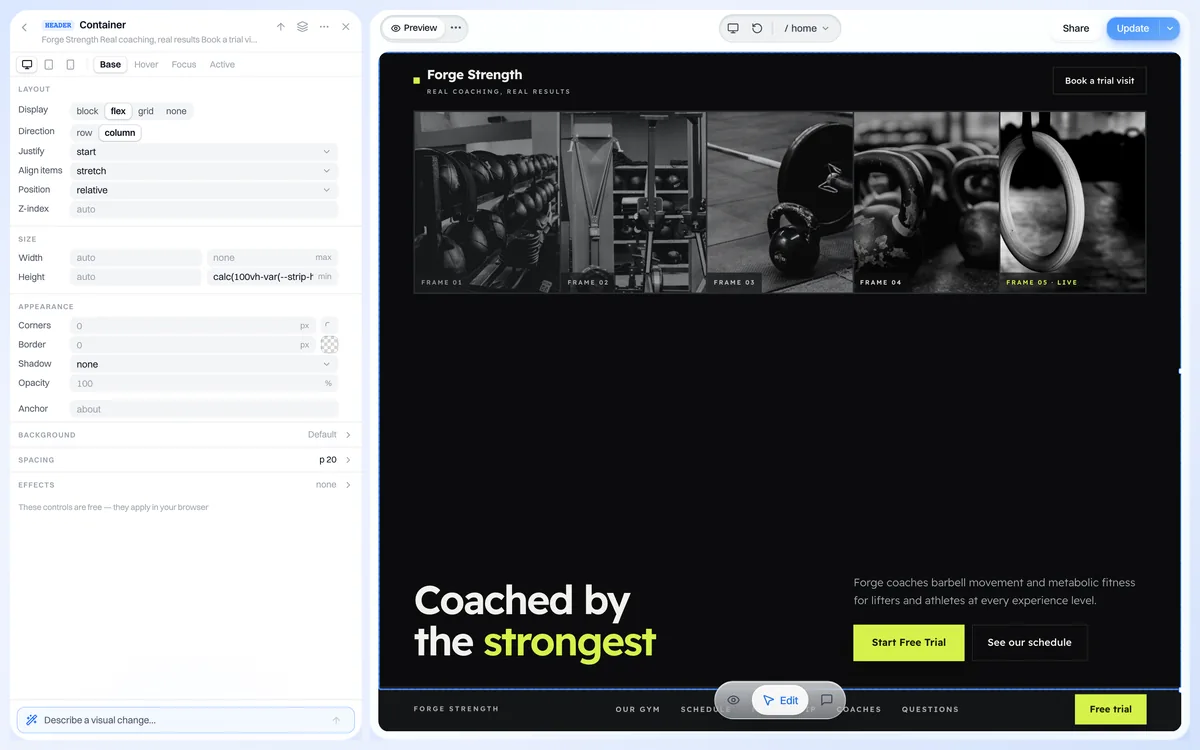
There are two ways to change what your site says and shows: click the thing you want to change in the live preview, or describe the change in the chat. Clicking is instant and free; chat is best for bigger rewrites.
Edit text by clicking
- 1. Open your project from the dashboard at my.we.inc.
- 2. In the preview, click the heading, button or paragraph you want to change.
- 3. Type your new wording directly on the page.
- 4. Click outside the text to keep the change. It is saved to your project automatically.
Replace or add an image
- 1. Click the picture in the preview to select it.
- 2. Choose to replace it and upload a photo from your computer (or pick one you uploaded before).
- 3. Check the preview on a phone-sized view to make sure it crops well.
- 4. Republish when you are happy so visitors see the new picture.
Rewrite with AI
On a paid plan you can type requests like "rewrite the About section for a family-run bakery" or "use my own photos in the gallery". Each request uses credits. The free plan does not include AI, so on Free use click-to-edit instead.
Pro Tip
Changes in the builder do not reach your live site until you publish again. Use the Publish button after each round of edits.