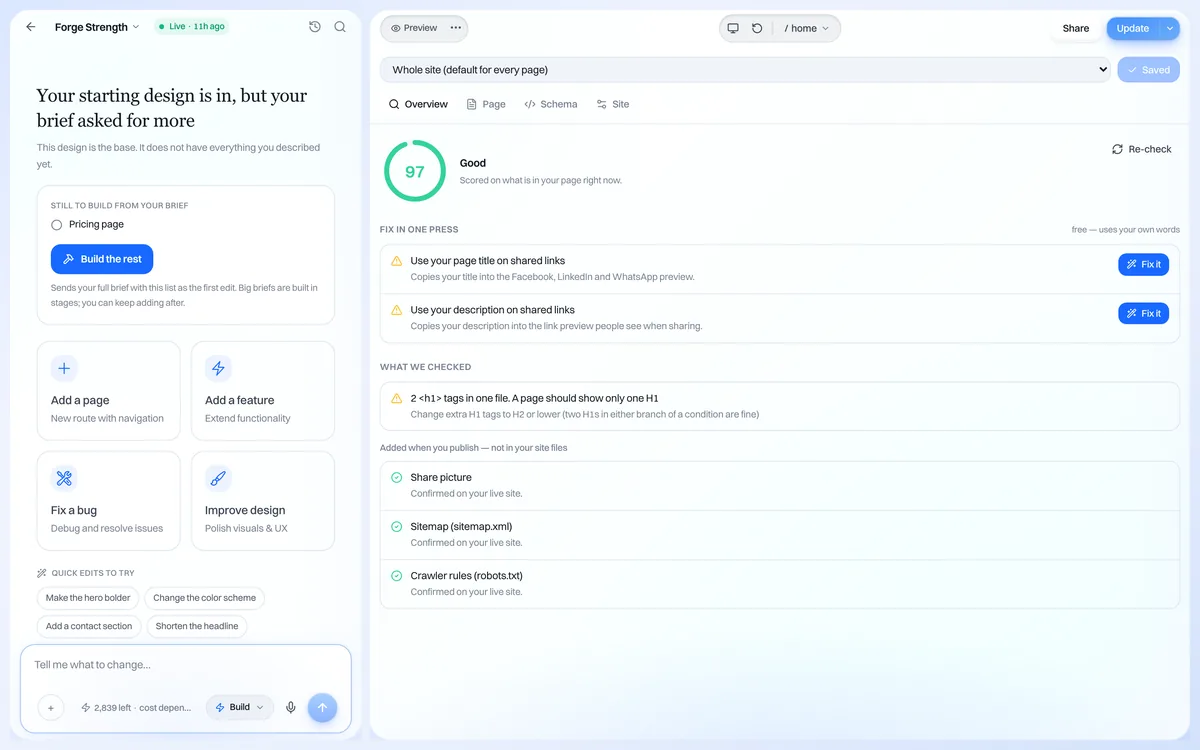
Each project has SEO settings with four tabs: Meta Tags, Social, Analytics and Advanced. Every published site also gets a sitemap and robots file automatically.
Set your title and description
- 1. Open your project and open the SEO settings from the panels menu (or ask in chat to open SEO).
- 2. On Meta Tags, write a Meta Title of about 50 to 60 characters that says what you do and where.
- 3. Write a Meta Description of about 150 to 160 characters that gives a reason to click.
- 4. Save, then republish your site so the new tags go live.
Control how shared links look
- 1. Open the Social tab.
- 2. Add a share title, share description and the web address of a share image (1200 by 630 pixels works well).
- 3. Save and republish.
Add Google Analytics or a tracking pixel
On the Analytics tab, paste your Google Analytics ID (starts with G-), Google Tag Manager ID (GTM-) or Facebook Pixel ID, then republish.
Pro Tip
Search engines take days to weeks to show changes. Connecting your own domain (paid plans) and adding your site to Google Search Console helps it get found.