Every email your clients get, in your name
The fastest way to give away a white-label platform is an email. A client signs up on your beautifully branded portal, then gets a confirmation from a company they have never heard of, with someone else's logo and someone else's postal address in the footer. This page explains which emails a client receives on We.Inc, what they look like before and after you set up your own sending domain, how to reword them and add your own automatic emails, and the deliverability and anti-spam rules to keep in mind.
TL;DR
- Four system emails go to your clients in your name: confirm email address, client invitation, website ready and payment receipt. You can reword all four; only "website ready" can be switched off.
- From day one they carry your brand name, logo, colour and support address for replies. Until your own sending domain is verified, the address itself is on our delivery domain.
- You can add up to 25 automatic emails of your own, triggered by six client events, with a delay of up to 90 days and a cap of 300 automatic sends a day.
- Book a demo to see the editor and previews with your own brand. Sending from your own domain depends on your plan; we confirm it on the call.
The emails your clients receive
A client on your platform gets very few emails from the system, which is how it should be. Each one exists because a client needs it to get in, to be reassured, or to keep a record.
| When it is sent | Can you switch it off? | |
|---|---|---|
| Confirm email address | Right after a client creates an account | No. It proves the address reaches them. |
| Client invitation | When you add a client, or someone signs up on your sign-up page | No. Without it the client cannot get in. |
| Website ready | When a client's site finished building after they closed the tab | Yes |
| Payment receipt | When a client pays you | No. The amount, plan and date are always included. |
The three that cannot be switched off are the ones a client needs to reach or secure their account, or to keep a record of a payment. You can still reword every one of them.
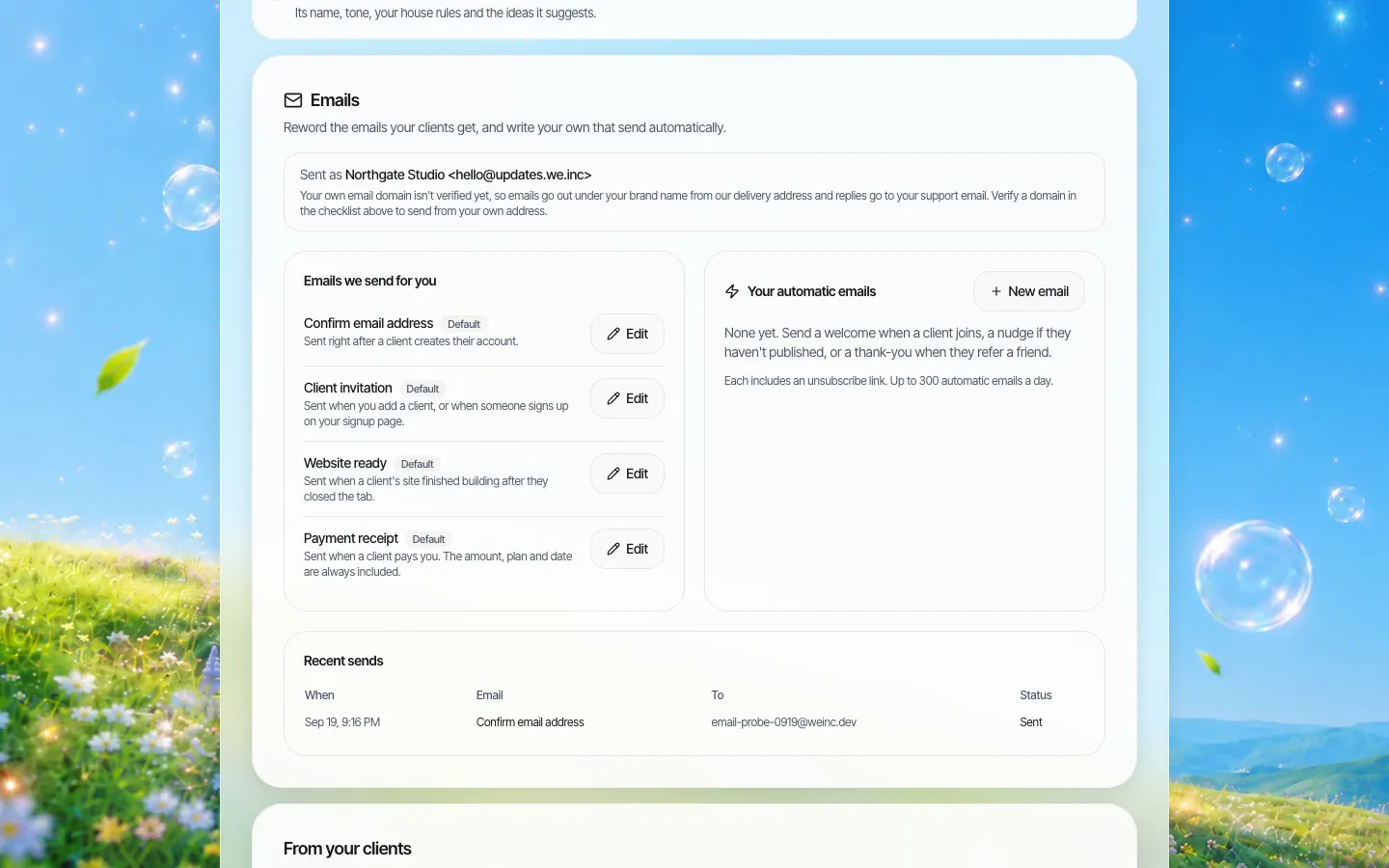
*The Emails section on the demo brand "Northgate Studio": system emails on the left, your own automatic emails on the right, and recent sends underneath.*
What your client sees, before and after your own domain
There are two stages, and the first one is already branded. This is the part most white-label platforms get wrong, so here is exactly what changes:
| What the client sees | Before your sending domain is verified | After it is verified |
|---|---|---|
| Sender name | Your brand name | Your brand name |
| Sender address | Our delivery address (for example [email protected]) | An address on your own domain |
| Logo and button colour | Yours | Yours |
| Where replies go | Your support email | Your support email |
| Links in the email | Your portal's address | Your portal's address |
| Footer | Your brand name. Our name and postal address never appear on your clients' mail | Same |
Many brands stay on the first stage for good, and that is fine: mail goes out under your name and delivers. The second stage matters if your clients look closely at the address, or if your own IT team wants mail to align with your domain.
To move to the second stage you enter a subdomain you own (something like mail.yourdomain.com), add the DNS records the setup shows you, and wait for it to verify. Mail switches to your domain only once verification succeeds, so a half-finished setup never stops mail arriving.
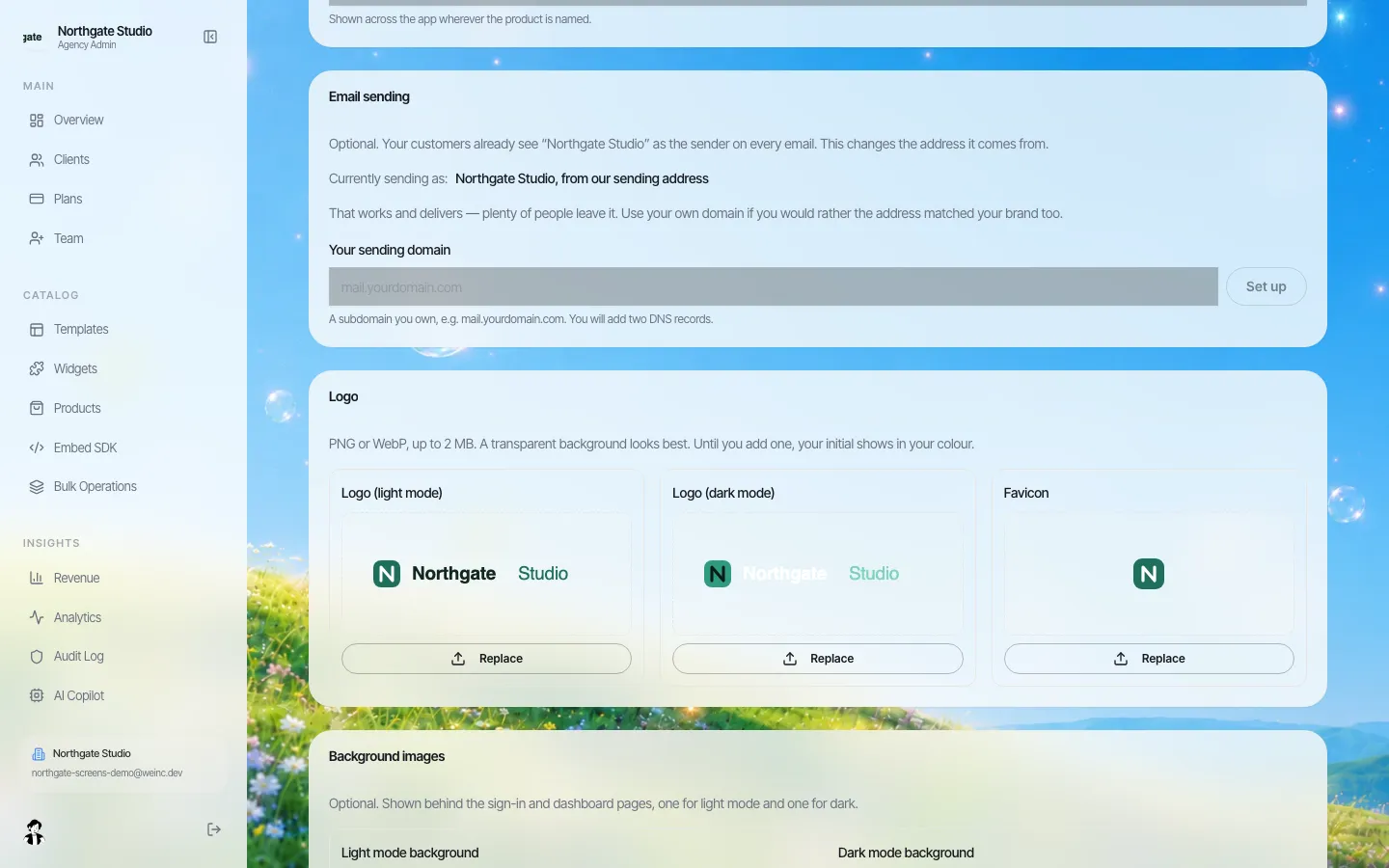
*The sending-domain setting. It says what clients see today and asks for a subdomain you own; you then add two DNS records.*
Rewording the system emails
Open any system email and you get a subject line, a message box and a live preview with a sample client, rendered with your logo and colours. The message uses light formatting: double asterisks for bold, and a special button line that names the button's label and the link it opens, which becomes a button in your brand colour.
Details you can insert, which fill in per client (and are left blank if we do not have them):
- {{client_name}}, {{client_email}}
- {{brand_name}}, {{support_email}}, {{portal_url}}
- {{site_name}}, {{site_url}}
- {{action_url}}, the link the email exists to deliver
- For receipts: {{amount}}, {{plan_name}}, {{date}}
The link a client needs is protected. If you reword the invitation and delete the button, the button is added back, because an invitation without a way to accept it is a support ticket waiting to happen.
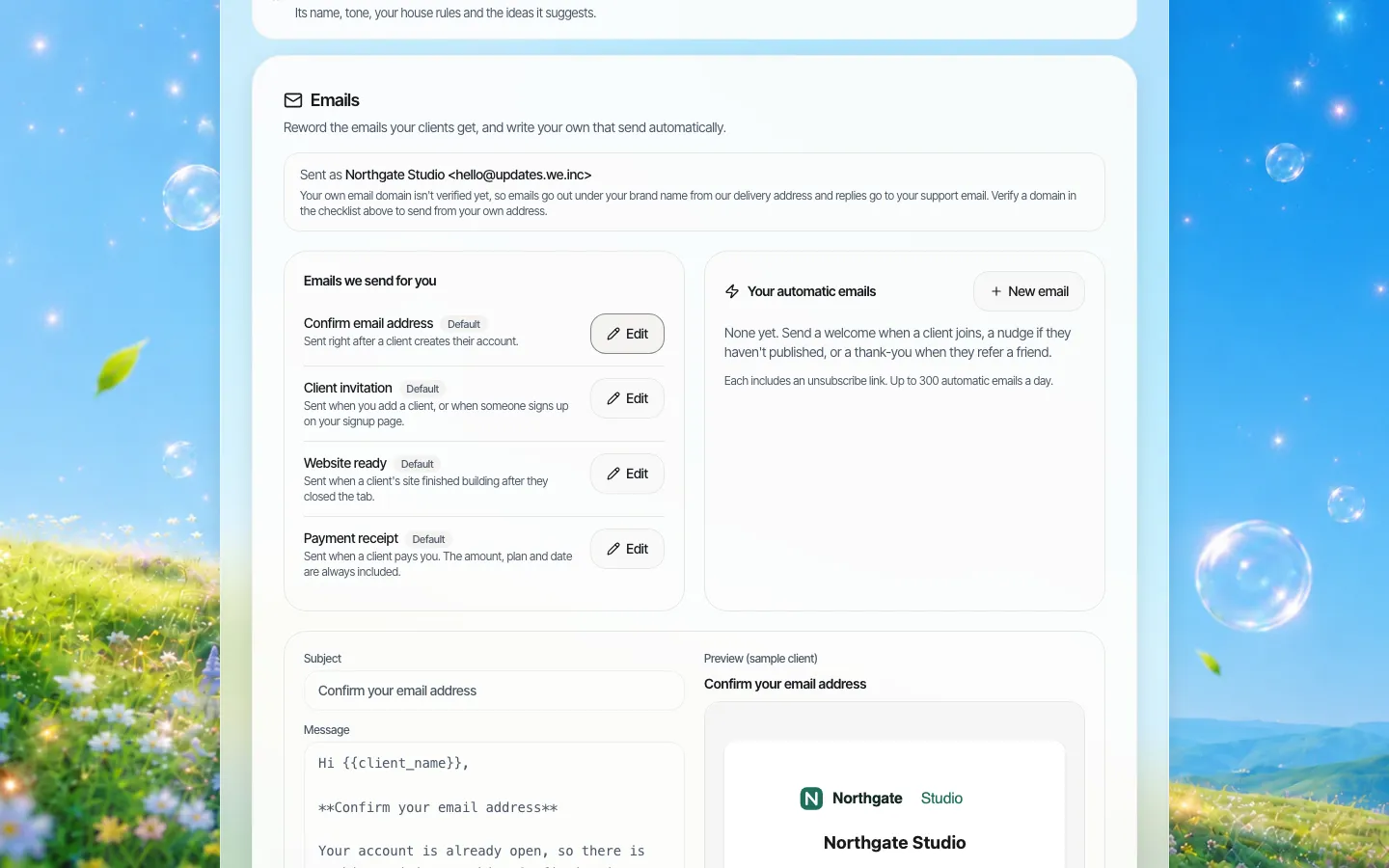
*Editing the confirmation email. The preview uses a sample client and your brand.*
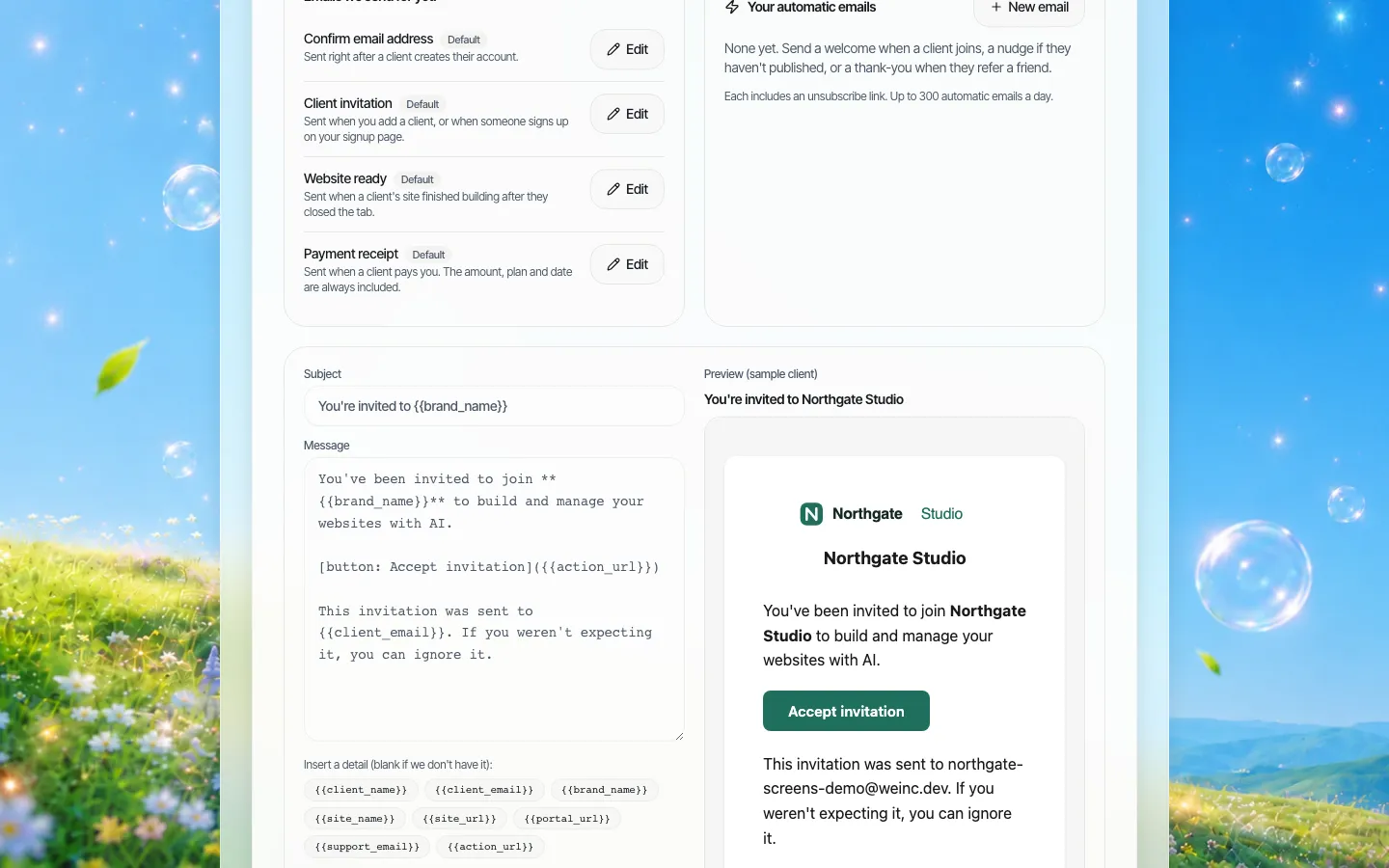
*The invitation, with the insertable details listed under the message and the button shown in the brand's colour.*
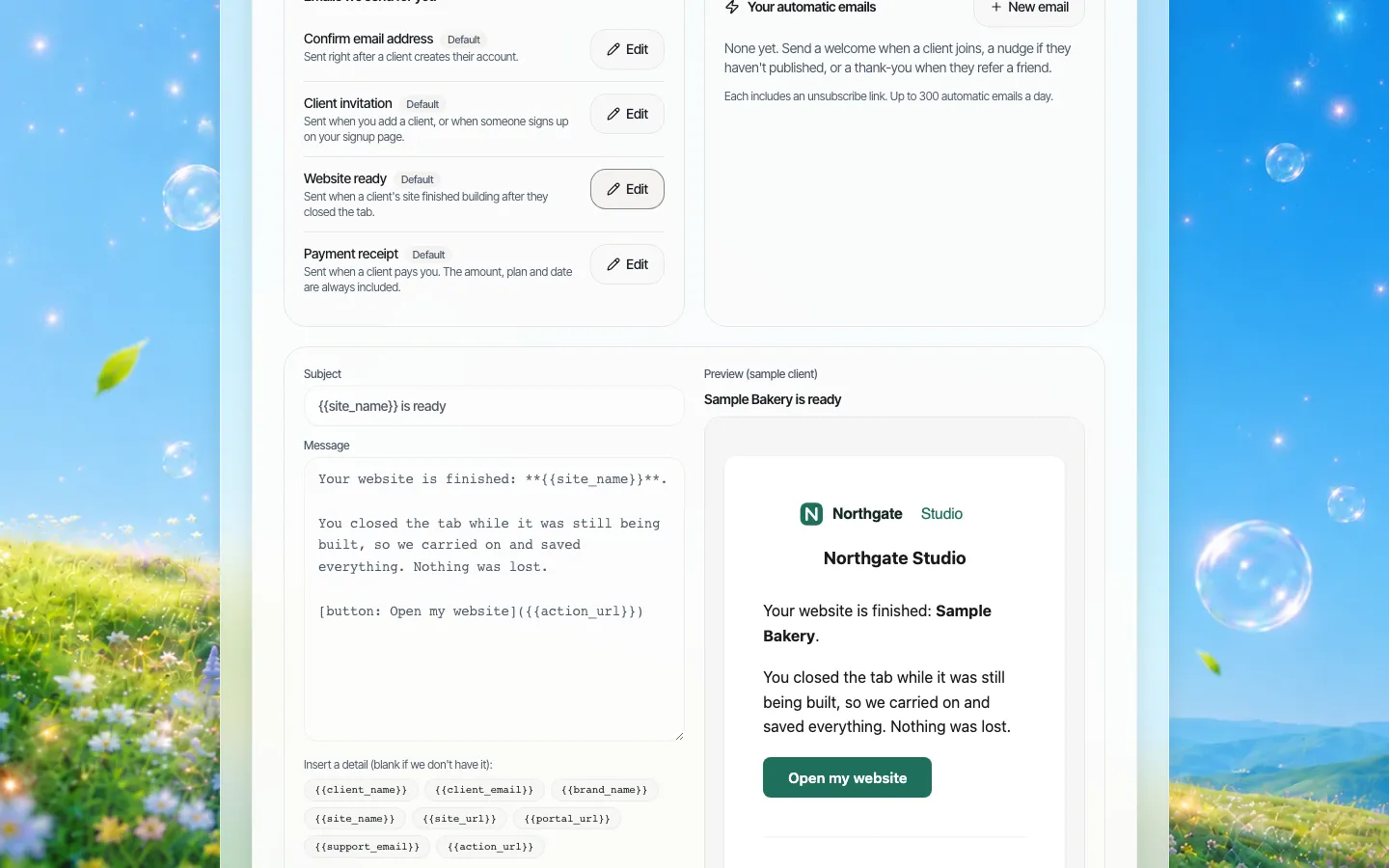
*"Website ready" is the one system email you can switch off, for example if your own team tells clients when their site is done.*
Rewording tips that save support tickets
- Put your support address in the first email. The invitation is the email most likely to be forwarded to a colleague who then cannot sign in.
- Say why the email arrived. "You were invited by Northgate Studio because..." beats a bare button, especially for clients who signed up months ago.
- Keep subject lines plain. "Confirm your email address" gets opened. Clever subjects on account emails look like phishing.
- Do not promise turnaround times in "website ready" unless your team will meet them.
- Test with a real inbox on two providers before announcing the platform to clients.
Automatic emails you write yourself
Beyond the four system emails, you can write your own emails that send automatically when something happens to a client. Each brand can have up to 25 of them. The events available:
| Trigger | When it fires |
|---|---|
| Client signed up | Once per client, when they join your brand |
| Client created their first site | Once per client |
| Client published a site | Once per site, the first time it goes live |
| Client has not published yet | Checked daily; sends when a client has published nothing a set number of days after signing up |
| Client referred someone | To the client who shared their link, once per person they referred |
| Client paid you | Once per payment |
Each automatic email can wait between 0 and 90 days after its trigger. "Client has not published yet" needs at least one day, since the point is the delay.
Some guard rails are built in:
- Every automatic email carries an unsubscribe link for that client and that brand, and clients who unsubscribe are skipped from then on. The system emails above are not affected by it.
- Switching an email on does not mail your whole back catalogue. The "has not published yet" check looks only at clients who recently crossed the threshold, so a new nudge does not reach someone who joined two years ago.
- A cap of 300 automatic emails a day per brand, so a mistake cannot flood your clients.
Three automatic emails most brands should start with:
- Welcome, on sign-up, day 0. Who you are, how to reach a person, and the one thing to do first.
- Nudge, not published after 7 days. Offer a short call or a link to your help pages. Clients who stall usually stall on one question.
- Congratulations, first publish, day 0. Suggest the next step: connect their domain, add a contact form, or ask for a review.
Delivery, spam rules and your responsibilities
Branded emails only help if they arrive. Two sets of rules are worth knowing.
Mailbox providers. Google's sender guidelines require every sender to Gmail to set up SPF or DKIM and keep the spam rate reported in Postmaster Tools below 0.3%. Senders of more than 5,000 messages a day to Gmail must also use SPF, DKIM and DMARC, align the From domain, and support one-click unsubscribe on marketing messages. While you send from our delivery address, authentication of that address is handled on our side. Once you move to your own domain, publish a DMARC record for it as well; the setup gives you the records the provider needs to verify sending.
Anti-spam law. In the US, the FTC's CAN-SPAM guidance treats messages whose main purpose is transactional, such as receipts and account emails, as exempt from most of the Act's rules. Commercial messages must include a valid physical postal address and an opt-out that is honoured within 10 business days. Our footer on your emails shows your brand name, not a postal address, so if an automatic email you write is promotional (an offer, an upsell), add your postal address to the message yourself. The unsubscribe link is already there. Other countries, including Canada and the EU, have their own rules; check the ones that apply to your clients.
The recent sends log
Under the editors, the Recent sends table shows when each email went, which email it was, to whom, and whether it was sent. It is the first place to look when a client says "I never got the invitation": if it shows as sent, the next step is their spam folder or their company's mail filter; if it does not appear, the invitation was never triggered. You can also send yourself a test of any email while editing it.
A setup checklist you can copy
- Upload your logo (light and dark versions) and set your brand colour, so the emails match the portal.
- Set a support email address that a person reads. Replies go there.
- Reword the four system emails. Read each one aloud.
- Send yourself a test of each, to a Gmail and an Outlook address.
- Write a welcome email and a "not published after 7 days" nudge.
- Decide whether to send from your own domain. If yes, choose a subdomain, add the DNS records, add a DMARC record and wait for verification.
- Add your postal address to any automatic email that sells something.
- Invite one friendly client first and ask them to forward you everything they receive.
What this does not do
- It is not a newsletter or marketing tool for your client list. Automatic emails go to individual clients when something happens to them, capped at 300 a day.
- The log shows what was sent and its status. If you need open and click reporting, raise it on the demo call rather than assuming it.
- These emails go to your clients, not to visitors of your clients' websites.
- Sending from your own domain depends on your plan. We confirm what your setup includes on the demo call.
Book a 30-minute demo and we will open the email editor with your logo and colours, so you can see your invitation the way a client will.
Sources
Last checked 2026-10-25.
- Google Workspace Admin Help, Email sender guidelines: authentication, spam rate and unsubscribe requirements for all senders and for senders of 5,000+ messages a day.
- Federal Trade Commission, CAN-SPAM Act: A Compliance Guide for Business: transactional messages, postal address and the 10-business-day opt-out.
This section is general information, not legal advice.
Book a demo. Pricing is tailored to your volume and setup, and you get your exact price on the call. 0% transaction fee.
Frequently asked questions
Will my clients ever see the We.Inc name in emails?
The sender name, logo, button colour, footer, links and reply-to address are all yours, and our name and postal address never appear on your clients' mail. Until you verify your own sending domain, the sending address itself is on our delivery domain (for example [email protected]).
Which client emails can I change?
All four system emails (confirm email address, client invitation, website ready and payment receipt) can be reworded, with a live preview. Only "website ready" can be switched off. You can also write up to 25 automatic emails of your own.
Can I send client emails from my own domain?
Yes, depending on your plan. You enter a subdomain you own, add the DNS records the setup shows, and once it verifies, mail comes from your domain. Until then mail keeps going out under your brand name from our address, so nothing stops arriving.
Can clients unsubscribe from automatic emails?
Yes. Every automatic email you write carries an unsubscribe link for that client, and unsubscribed clients are skipped. Account and payment emails keep sending, because clients need them.
Keep reading
- White label website builder: the We.Inc platform
- White-label custom branding
- White-label client dashboard
- Website builder security questionnaire
More in White Label
- The page your clients see most should not say someone else's name
- Brizy white label pricing, and the AI alternative
- The same fix on forty websites, without opening forty editors
- Your clients need a website halfway through your programme. Give them one under your name.
- The moment someone forms a company, they need a website. You are already there
- A member website programme your chamber can actually run
- The cheapest white-label website builder, by cost per site
- A website for every congregation, under a shared identity
We.Inc is an AI-powered website builder you can resell under your own brand. Launch a branded client dashboard, bill on Stripe Connect, and deliver AI-generated websites in minutes. White-label pricing is tailored to your volume and setup: book a 30-minute demo for a quote.
Product
- AI Website Builder: Describe a site in plain English; it's live in minutes
- White Label Platform: Your brand, your domain, your margin
- Enterprise: SSO, custom SLAs, and dedicated support
- Developer API: Embed site generation into your SaaS
Who It's For
- For Agencies: Resell under your brand
- For Freelancers: Your own branded builder
- For Hosting Providers: Add a builder to your stack
- For SaaS Platforms: Embed site creation via API
- For Startups
- For Financial Services
- For Healthcare
Features
- Drag & Drop Editor
- Built-in SEO Tools
- Custom Branding
- Client Dashboard
- Reseller Billing (Stripe Connect)
Resources
- Blog
- Help Center
- Free Business Tools
- Free UI Components
- Website Templates
- Template Collections
- Website Examples
- Guides
- Comparisons
- Alternatives
- Best Lists
- Reviews
- Pricing Guides
- Use Cases
- Glossary & Guides
- Integrations
- Developers
- Benchmark
- Windows App