The same fix on forty websites, without opening forty editors
Every network of sites eventually has a change that applies to all of them: a new privacy link, a corrected phone number for head office, an updated tracking snippet, the copyright year. Doing it site by site takes a day and leaves three sites missed. We.Inc's bulk operations let a brand owner or admin define one change, preview exactly what it does to each site, apply it, and undo it. This page explains how it works and where it will not help.
TL;DR
- A bulk operation is a named change applied to the sites you select, from the agency console.
- The change is described at file level: create a file, replace text inside a file, replace a whole file, or delete a file.
- You see a before-and-after diff for every site before anything is written. Sites where the file or text is missing are flagged, not guessed at.
- Completed operations can be rolled back. Only the brand owner and admins can create, apply or roll back.
When a bulk change is the right tool
Not every change belongs in a bulk operation. A quick test:
| The change is... | Use |
|---|---|
| Identical text or code on every site (a link, a snippet, a legal line) | A bulk operation |
| The same idea, but worded differently per business | Each site's editor, one by one, or ask each client |
| A new design direction | New templates for future sites; redesign existing ones individually |
| Something only the client knows (opening hours, prices) | The client, through their own editor |
Bulk operations shine where the change is mechanical and identical. They are the wrong tool for anything that needs judgement per site.
The screen
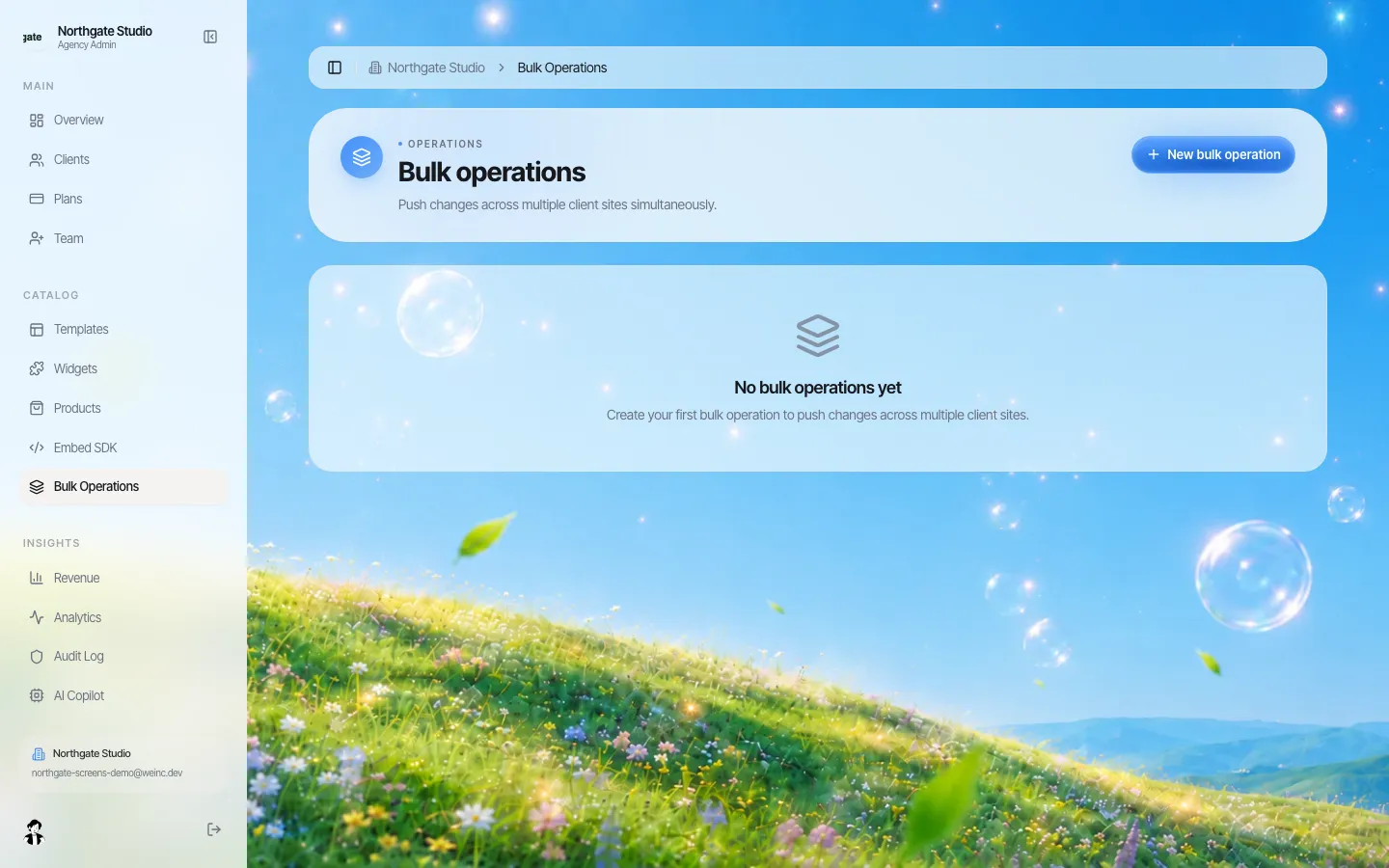
*Bulk operations in the agency console of a demo brand, before any operation has been created.*
Each operation has a name, a description, a type and a list of target sites. The types help you and your team see at a glance what kind of change it was:
- Content update: text, images or links.
- Style change: colours, fonts or spacing.
- Add or replace component: a new section or a replacement for an existing one.
- Add script or snippet: analytics, tracking or similar.
- Custom change: anything else, with the description explaining it.
Step by step
1. Pick the sites
The target list shows your clients' active sites, searchable by name. Select all of them, or only the group the change applies to. A good habit is to run the first operation on two or three sites, check them, then run the same change on the rest.
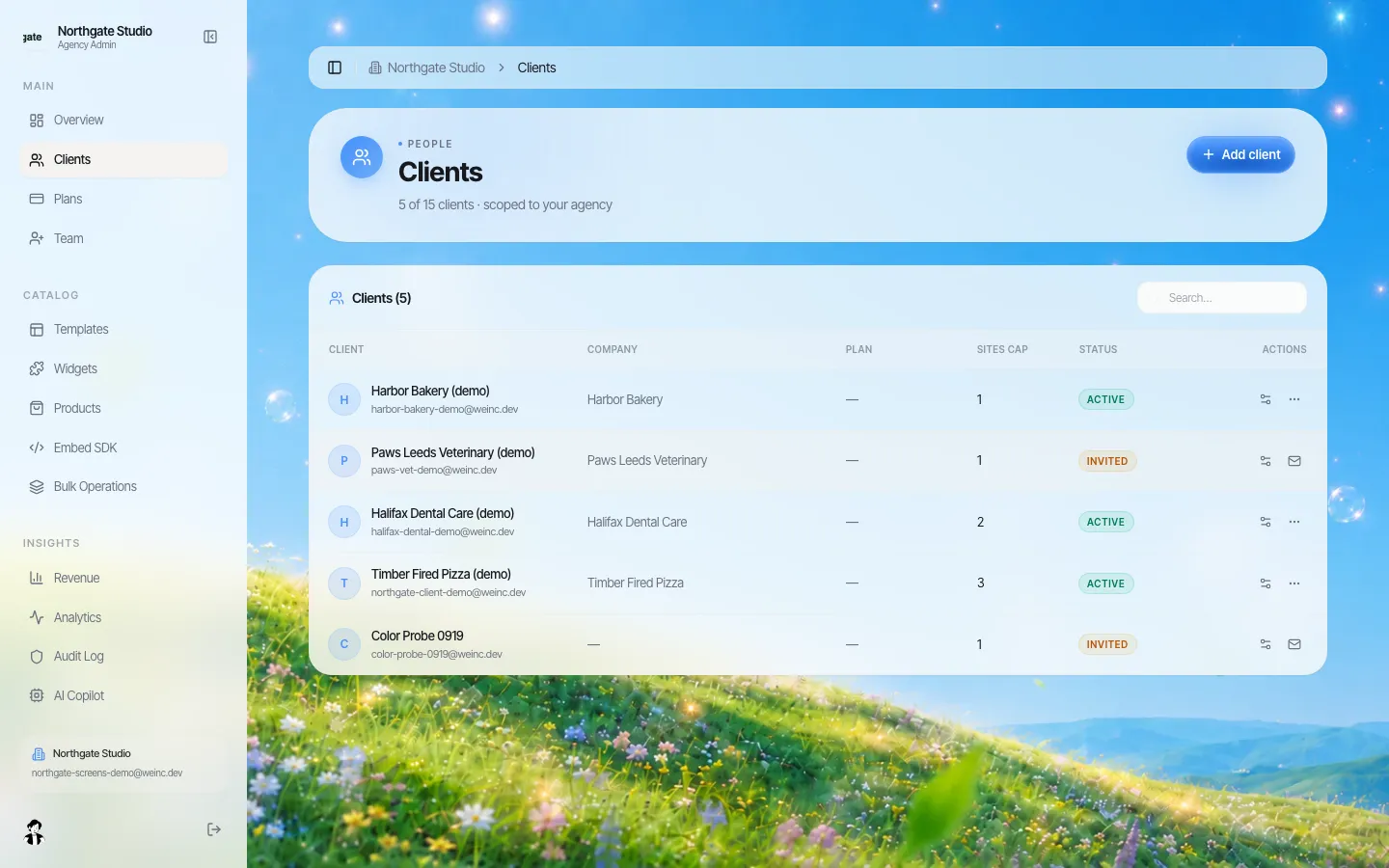
*The agency clients table. Tags and plans here are a useful guide to which group of sites a change belongs to.*
2. Describe the change at file level
Sites are made of files, and the change is written against those files. For each file you give a path and an action:
| Action | What you provide | Typical use |
|---|---|---|
| Update with search and replace | The exact text to find and its replacement | Change a phone number, fix a link, update a year |
| Update with full content | The new content of the whole file | Replace a shared footer component that is identical everywhere |
| Create | A path and the file's content | Add a new snippet or component file |
| Delete | A path | Remove a file that should no longer exist |
To find the right path, open one site's code panel and look at the file tree.
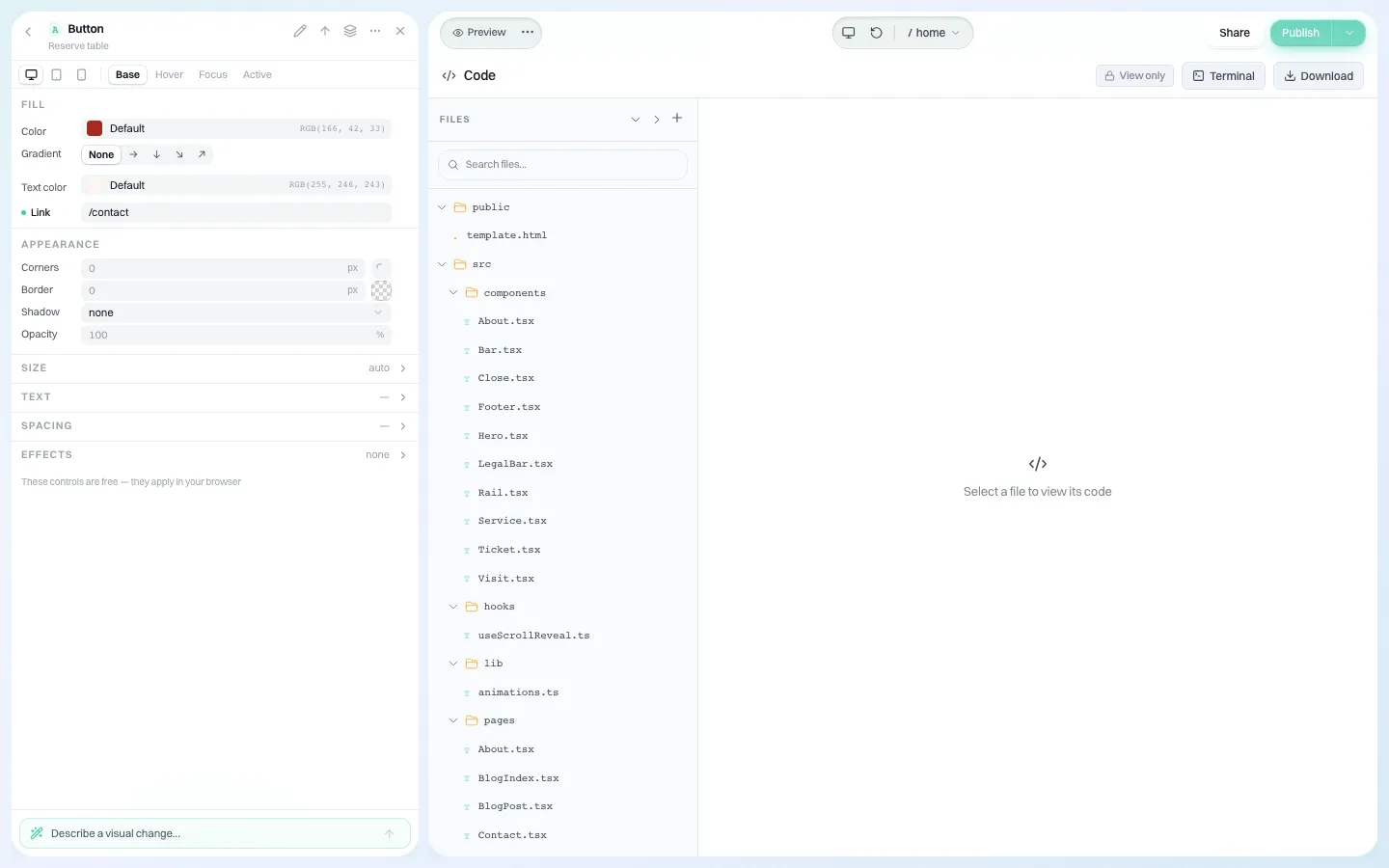
*The code panel shows each site's files, which is where you find the path a bulk change should target.*
3. Preview every site
Before anything is written, each target site gets a preview: the file as it is now and as it would be after the change. The preview is honest about mismatches:
- If the file does not exist on a site, the preview says so and that file is skipped for that site.
- If the search text is not found, the preview says "no match found" instead of guessing.
This matters because sites created with AI from different prompts do not all share the same structure. A footer in one site may live in a different file in another. The preview tells you which sites will change and which will not, so you can deal with the exceptions by hand.
4. Apply
Applying writes the change into each selected site's files, site by site, and tracks how many completed and how many failed. The operation moves through clear states: draft, previewing, approved, applying, completed or failed. Applying does not publish anything by itself, so changes reach live sites through your normal publishing process.
5. Roll back if needed
A completed operation keeps the data needed to reverse it. Rolling back restores the files it changed. Roll back is only available once an operation has completed.
Three worked examples
The copyright year. Each site's footer contains "© 2025". Create a content update, target all sites, path set to the footer file, search "© 2025", replace with "© 2026". The preview will show which sites have that exact text in that file; sites whose footer lives elsewhere, or that never had a year, show "no match" and are left alone.
A new privacy policy link. Head office moved the policy to a new address. Search for the old link text in the footer file and replace it with the new one. Before applying, open two sites from the preview list and check the replacement lands inside the link, not in surrounding text.
A shared snippet. You need the same small script on every site, for example a consent banner your organisation already licenses. Use "add script or snippet" with a create action for the new file. Creating the file alone does not wire it into each page, so check how the sites load scripts in the code panel first, and include that edit in the same operation where the text is identical.
Who can run a bulk operation
Only the brand owner and admins can create, apply or roll back bulk operations. Designers, Support and Billing staff cannot; see team roles. That is intentional: a change that touches every client site should be one of a small number of people's decisions.
A safe procedure for network-wide changes
Copy this into your runbook:
- Write down the change in one sentence, with the reason and who asked for it.
- Find the file on two different sites and confirm the exact text is identical on both.
- Create the operation with a name you will recognise in six months ("Privacy link to /privacy-2026, Oct").
- Preview all targets. List every site that shows "file not found" or "no match"; those need a manual fix.
- Apply to a pilot group of two or three sites. Open them and check.
- Apply to the rest.
- Tell clients whose live sites will change, before you publish.
- Fix the exceptions from step 4 one by one in each site's editor.
Where bulk operations will not help
- No smart rewriting. The change is literal: exact search text, exact replacement, or whole-file content. It does not understand that two differently worded footers mean the same thing.
- No per-site variables. You cannot insert each client's own business name into the same change. Do those edits per site.
- Not a design system sync. Sites do not share a live master component; each site owns its files. A bulk operation copies a change into each one.
- Not for client-owned content. If clients edit their own sites, agree with them before you change text they wrote.
Book a demo and bring one real change you make across all your sites; we will walk it through preview and apply on a sample brand.
Book a demo. Pricing is tailored to your volume and setup, and you get your exact price on the call. 0% transaction fee.
Frequently asked questions
Can I update many client websites at once in We.Inc?
Yes. A bulk operation applies one file-level change (create, search and replace, full replace or delete) to the sites you select, with a preview per site before it is applied.
What happens if a site does not have the file or text I am changing?
The preview flags it ("file not found" or "no match found") and that site is not changed for that file. You fix those sites individually.
Can I undo a bulk change?
Yes. A completed operation can be rolled back, which restores the files it changed.
Who can run bulk operations?
Only the brand owner and admins.
Keep reading
- White label website builder: the We.Inc platform
- Manage many client websites from one account
- Brand governance across many websites
- Audit log for a white-label website platform
- Website maintenance packages
- Website governance policy template
More in White Label
- Your clients need a website halfway through your programme. Give them one under your name.
- The moment someone forms a company, they need a website. You are already there
- A member website programme your chamber can actually run
- The cheapest white-label website builder, by cost per site
- A website for every congregation, under a shared identity
- A CivicPlus alternative for the sites a civic suite was never meant to run
- Showing clients their numbers without exporting a single spreadsheet
- Client Dashboard | White Label
We.Inc is an AI-powered website builder you can resell under your own brand. Launch a branded client dashboard, bill on Stripe Connect, and deliver AI-generated websites in minutes. White-label pricing is tailored to your volume and setup: book a 30-minute demo for a quote.
Product
- AI Website Builder: Describe a site in plain English; it's live in minutes
- White Label Platform: Your brand, your domain, your margin
- Enterprise: SSO, custom SLAs, and dedicated support
- Developer API: Embed site generation into your SaaS
Who It's For
- For Agencies: Resell under your brand
- For Freelancers: Your own branded builder
- For Hosting Providers: Add a builder to your stack
- For SaaS Platforms: Embed site creation via API
- For Startups
- For Financial Services
- For Healthcare
Features
- Drag & Drop Editor
- Built-in SEO Tools
- Custom Branding
- Client Dashboard
- Reseller Billing (Stripe Connect)
Resources
- Blog
- Help Center
- Free Business Tools
- Free UI Components
- Website Templates
- Template Collections
- Website Examples
- Guides
- Comparisons
- Alternatives
- Best Lists
- Reviews
- Pricing Guides
- Use Cases
- Glossary & Guides
- Integrations
- Developers
- Benchmark
- Windows App