Migrating Off WordPress Multisite: Inventory, Export, Rebuild and Redirect Without Losing Traffic | How-to Guide
A step-by-step plan for moving a WordPress multisite network to another platform: how to inventory every site with WP-CLI, what a WXR export does and does not contain, how to decide which sites to move, rebuild or retire, and how to keep search traffic with redirect maps.
WordPress multisite is usually adopted for a good reason: one installation, one set of updates, many sites. Years later the same network often looks different. A plugin that one site needed is now installed for all of them. A theme update breaks three sites nobody has edited since 2021. The network admin is the only person who can install anything, so every department waits for one person. If you are planning to leave, this guide is the order of operations that keeps the risk low: count what you have, decide what each site deserves, move the content you keep, and protect the addresses people and search engines already know.
What you are actually migrating
It helps to be precise about how a multisite network is built, because it explains what exports will and will not give you. According to WordPress's own administration handbook, the sites in a network share one WordPress installation but have separate tables in the database, and each site has its own uploads folder. Plugins and themes are installed once at network level; individual sites can activate them but cannot install them. The network also chose, at setup, between subdomain addresses (site.example.org) and subdirectory addresses (example.org/site).
That means four separate things need a plan:
- Content: posts, pages, custom post types, menus, categories and tags, per site.
- Media: the files in each site's uploads folder.
- Behaviour: whatever the active plugins do on each site: forms, events calendars, directories, memberships, shops, search.
- Addresses: every URL that is linked, bookmarked or indexed.
Step 1: inventory every site
Do not trust the list in people's heads. WP-CLI, the WordPress command-line tool, can list every site in the network. Run it from the server that hosts the installation:
wp site list --fields=blog_id,url,last_updated,public,archived --format=csv > sites.csvBy default the command shows each site's ID, address, last-updated date and registration date; the extra fields above add whether a site is public or archived. Open the CSV and add columns to it. This spreadsheet becomes your migration register.
| Column | How to fill it |
|---|---|
| Owner (role) | Who is responsible for this site today. "Unknown" is an answer, and an important one. |
| Last real edit | From last_updated, then confirmed; plugin updates can make dead sites look alive. |
| Monthly visits | From your analytics over the last 12 months. |
| Pages indexed | From Search Console, if the site is verified. |
| Active plugins | wp plugin list --status=active --url=<site> |
| Special functions | Forms, shop, bookings, members' area, events, search. |
| Decision | Move, rebuild, merge or retire (step 2). |
Step 2: decide what each site deserves
A migration is the one moment when retiring a site is cheap. Use it. Every site falls into one of four groups:
| Decision | Use it when | What happens to the address |
|---|---|---|
| Move | Active, owned, content is current, design still fits | Keeps the same address, or redirects page by page |
| Rebuild | Active and owned, but content or design is out of date | New structure; redirect old pages to their closest new ones |
| Merge | A few pages that belong in another site | Redirect to the pages in the receiving site |
| Retire | No owner, no visits worth keeping, or a finished campaign | Redirect to the most relevant page elsewhere; archive a copy if records rules require it |
Networks that have run for many years often find a large share of sites in the last two rows. Be firm. Every site you move carries its maintenance cost into the new platform.
Step 3: export content per site
WordPress's built-in export (Tools, then Export) produces a WXR file, an XML format holding posts, pages, custom post types, comments, custom fields, terms, menus and authors. In a network, run it per site. WP-CLI does the same from the command line, and its --url argument is how you point it at one site in a multisite:
wp export --url=https://example.org/parks --dir=./exports/parks --skip_commentsKnow the limits before you rely on it. The WP-CLI documentation is explicit that WXR files do not include site configuration (options) or the attachment files themselves. Attachments appear as entries pointing at the old media URLs. So for every site you move you also need:
- The uploads folder for that site, copied from the server.
- Settings you care about (site title, tagline, reading settings, permalink structure), written down, since they are not in the file.
- Plugin data stored outside posts: many form, event and directory plugins keep data in their own tables. Export those through each plugin, or accept that they will be rebuilt.
- Form entries you must keep for records reasons, exported and stored outside the website.
If the destination is not WordPress, the WXR file is a source of content rather than something to import with one click. Most other platforms do not read WXR. Plan to move content page by page, which is also the right moment to rewrite what is stale.
Step 4: replace plugin behaviour deliberately
List every active plugin from step 1 and decide for each one: is the function needed on the new platform, is it built in there, does it need a third-party embed, or is it dropped? Typical outcomes:
| Plugin function | Common replacement | Watch out for |
|---|---|---|
| Contact and enquiry forms | Built-in forms on most platforms | Where submissions are emailed and stored |
| SEO plugin (titles, descriptions, sitemaps) | Platform SEO settings | Copy custom titles and descriptions for your top pages |
| Events calendar | Built-in blog or events page, or an embedded calendar | Recurring events and past-event archives |
| Membership or gated content | A dedicated membership tool | Members' accounts and passwords cannot usually be moved |
| Shop | Built-in store or a commerce platform | Order history, customer accounts, tax settings |
| Redirect plugin | Platform redirect rules | Export its existing redirects; they still matter |
Step 5: build the redirect map
Redirects are where migrations lose traffic. For every site you move, rebuild, merge or retire, make a sheet with three columns: old URL, new URL, and status (301 permanent). Fill it from three sources: a crawl of the old site, the pages that receive visits in analytics, and the pages Search Console reports as indexed or linked. Every URL with visits or links gets a specific destination. Do not send everything to a home page; search engines may treat redirects to irrelevant pages like missing pages. Our guides to soft 404s and subdomains versus subdirectories cover the details that trip people up.
Subdomain networks have an extra decision: if each site is moving to its own domain, the redirects live on the old subdomains, so keep the old network's DNS and a minimal redirecting server running until traffic to the old addresses has faded, typically many months.
Step 6: cut over in waves
- Pilot: move two or three low-risk sites end to end, including redirects, and watch them for two weeks.
- Template: fix your process and your new templates based on what went wrong.
- Waves: move the rest in groups, by owner, so each department handles one cutover rather than five.
- Freeze: during each wave, freeze edits on the old site from export day until cutover, or plan a second content sync.
- Watch: after each wave, check Search Console for crawl errors and redirected URLs that return errors.
- Decommission: only when every site is moved or retired, and redirects are handled elsewhere, shut the network down. Keep a full backup.
When to stay on WordPress
Leaving is not always the right call. WordPress is the better fit if your sites depend on plugins with no equivalent elsewhere, if you have developers who build custom themes and functionality, or if you need a deep editorial system with custom content types, scheduled publishing and multi-role editorial workflows. Splitting a multisite into separate WordPress installs, each with its own updates, is also a legitimate path. The case for moving is strongest when the sites are mostly brochure and information sites, nobody wants to maintain a plugin stack, and departments or clients want to edit without waiting for a network admin.
Moving the network onto We.Inc
We.Inc is a white-label website builder for organisations and agencies running many sites under one brand. To be clear about what it is and is not:
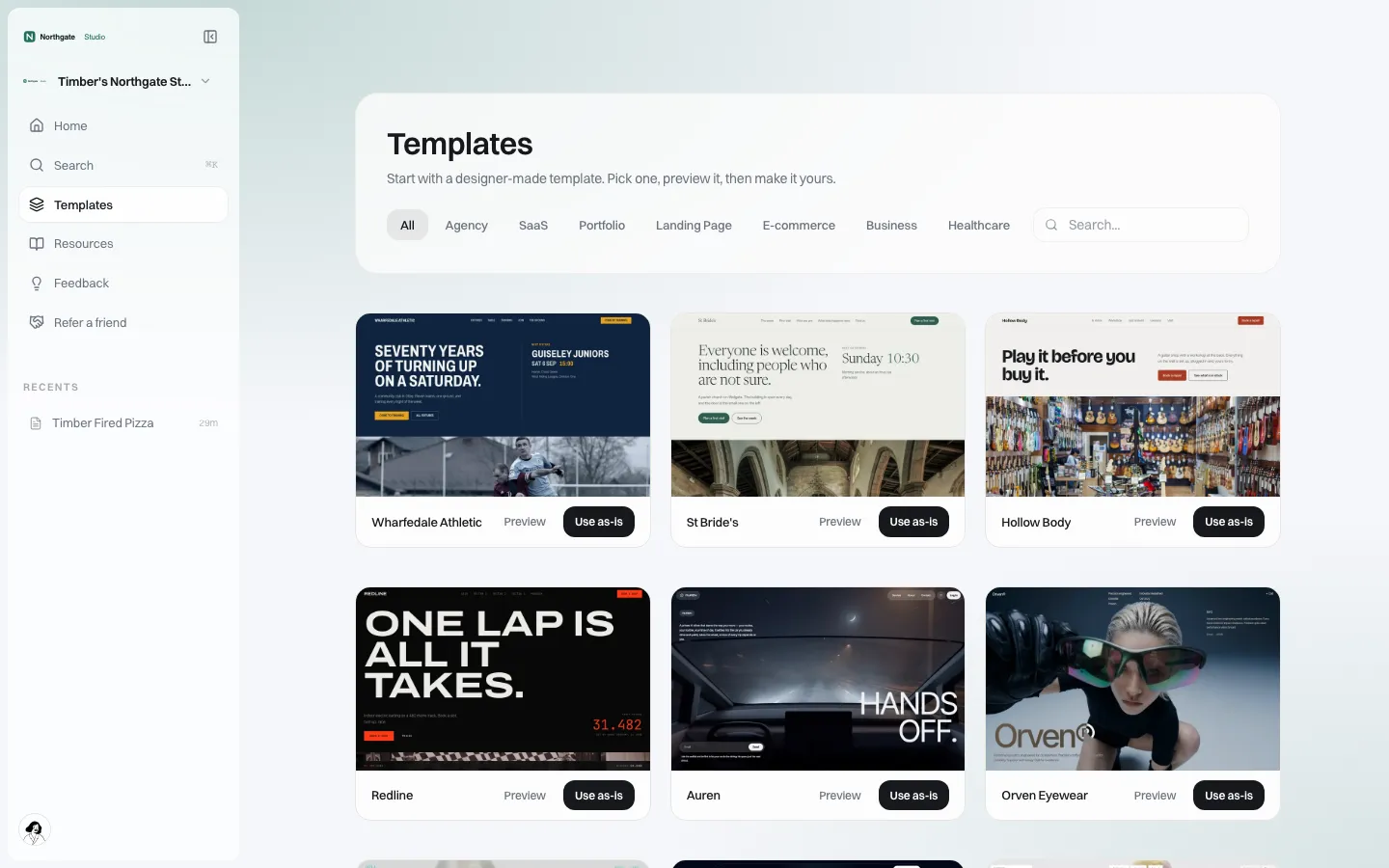
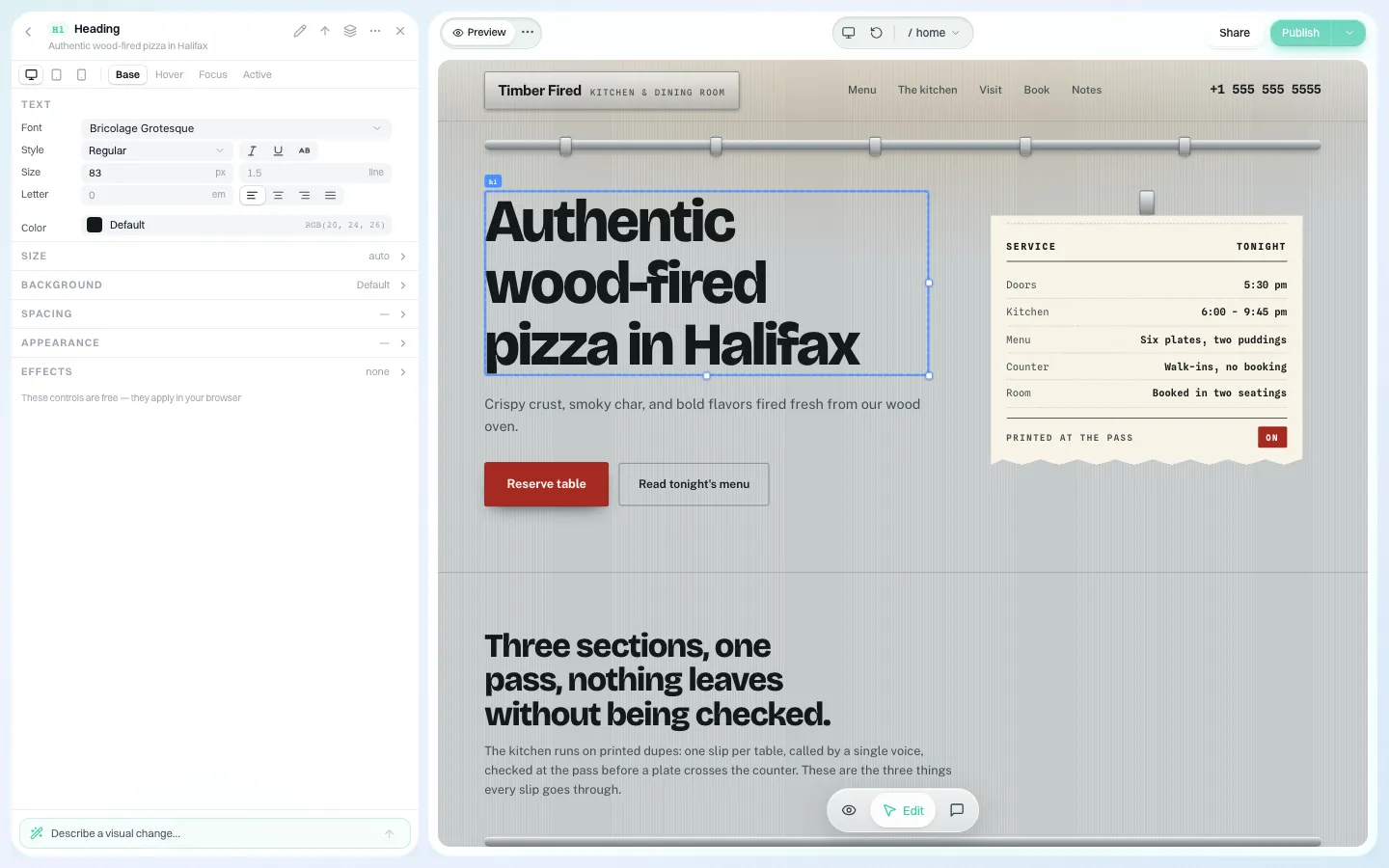
- There is no WordPress importer. Sites are rebuilt from templates or a written description with AI, then content is moved in and checked. That is real work per site, which is why step 2 matters.
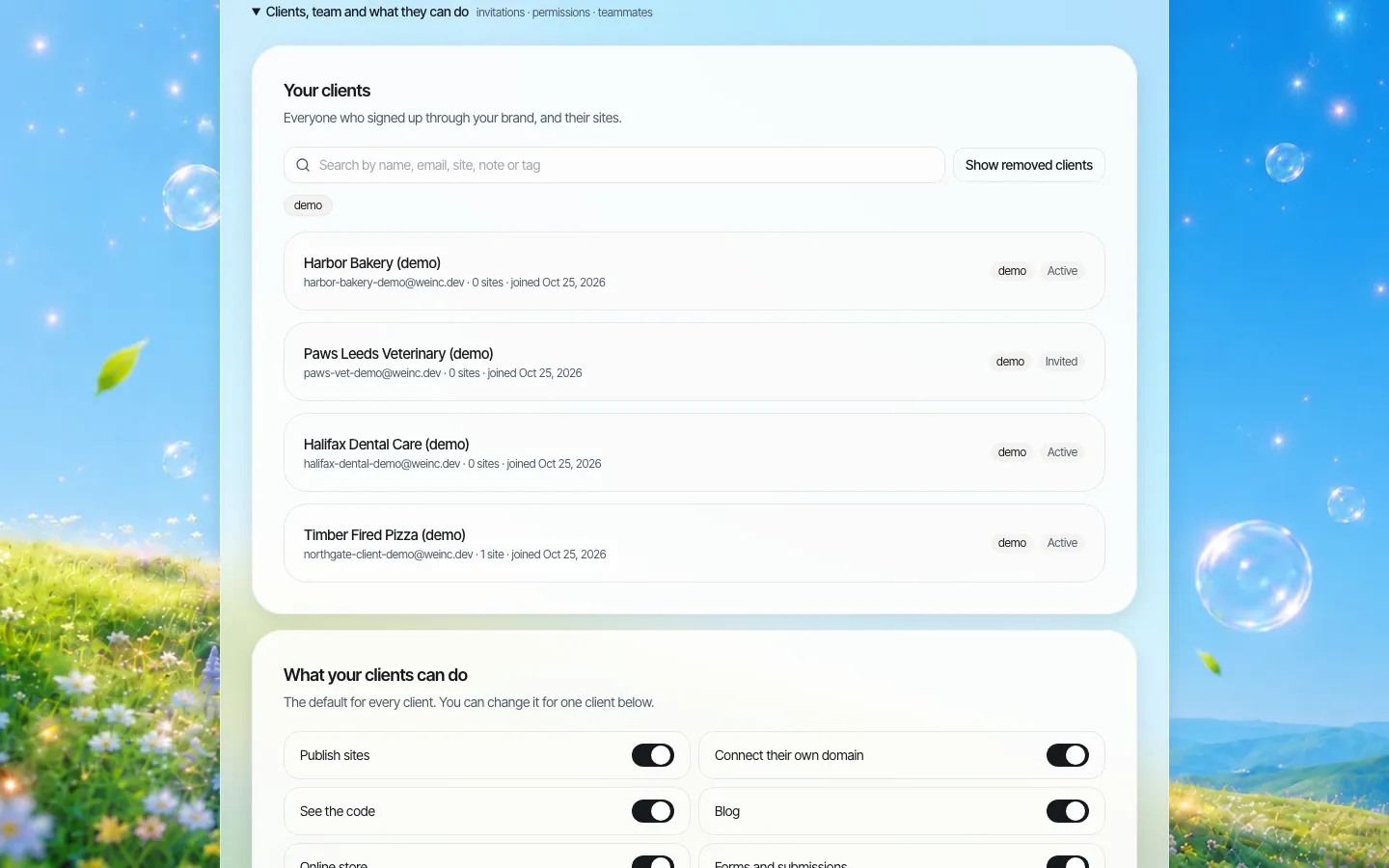
- Every site lives under your brand in one client list, each with its own owner, and you set brand colours, fonts and logo once.
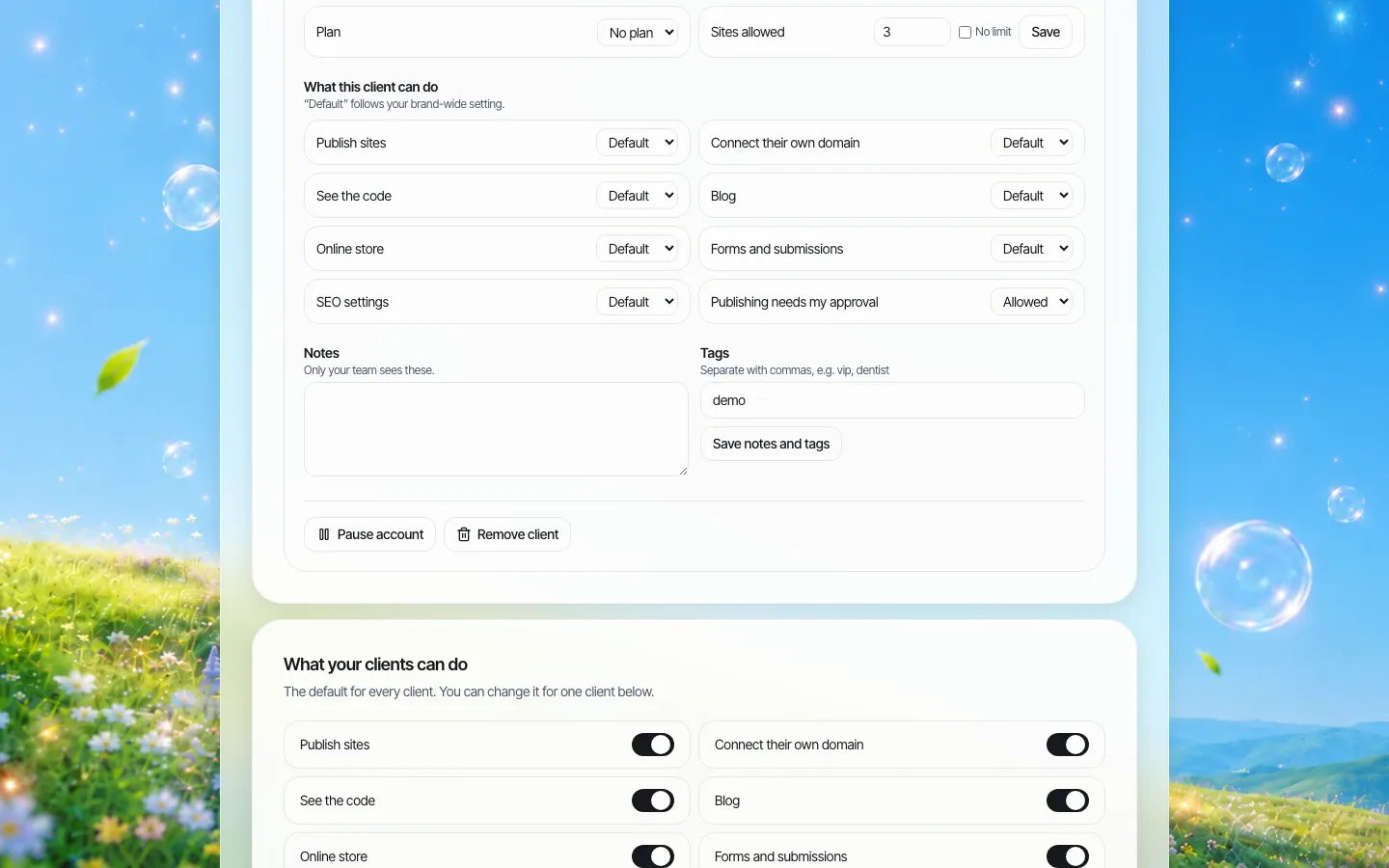
- Per-site switches decide what each site may do (publish, connect a domain, run a blog, store or forms), and you can require single-step approval before a site goes live.
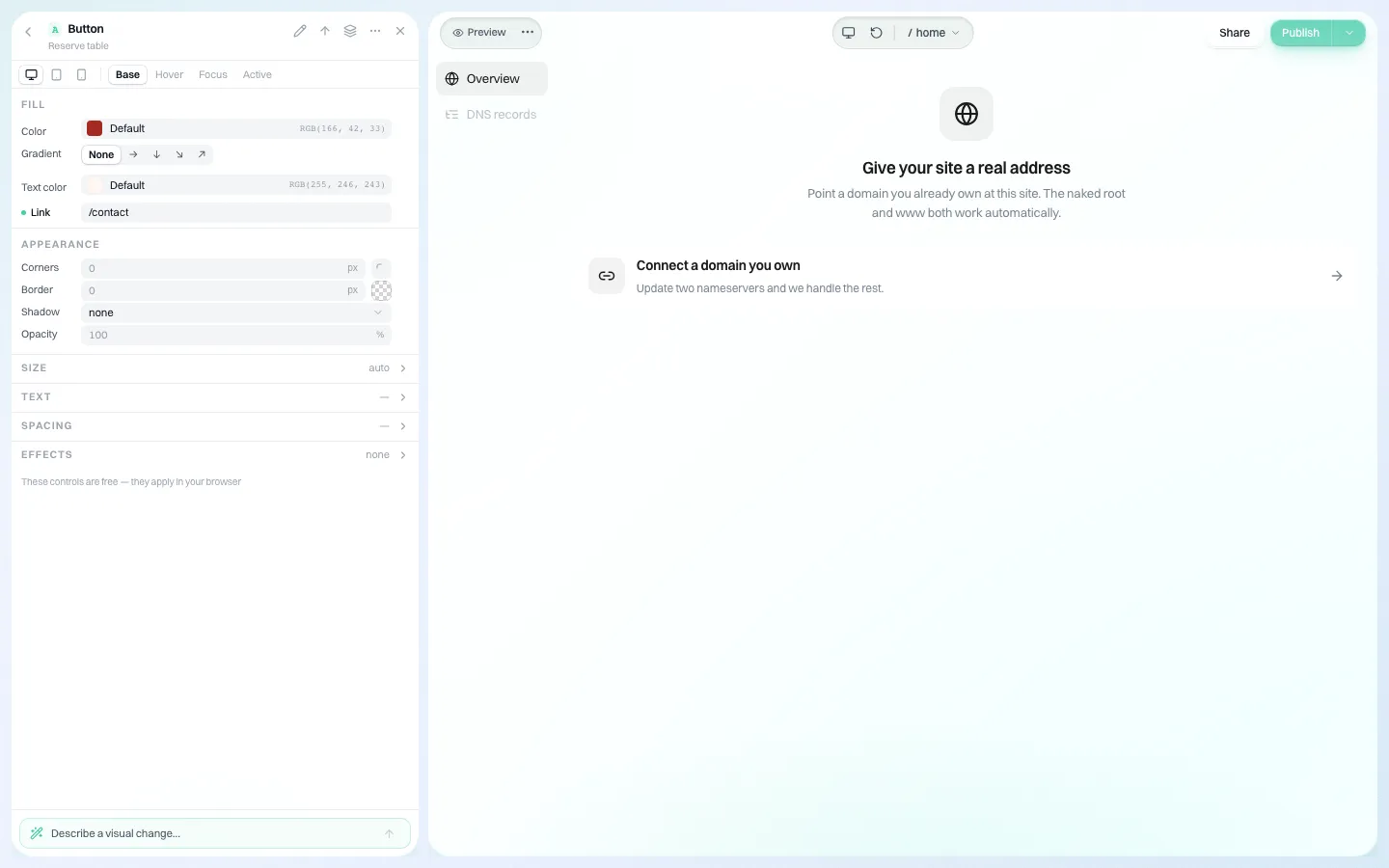
- Each site can have its own custom domain, and redirect rules for old addresses can be added in each site's SEO settings.
- Each site's code can be downloaded as a ZIP, so you are not locked in after the move.
Output is AI-generated, so every rebuilt site still needs your content and accessibility review before launch. If you have a register from step 1, bring it to a demo and we will go through which sites would fit. For the product overview, see multi-site management; for the platform comparison, white-label builder versus enterprise CMS.
Sources
Last checked 2026-10-25.
- WordPress Advanced Administration Handbook, Create a Network.
- WordPress.org Documentation, Tools Export Screen.
- WP-CLI Commands, wp export.
- WP-CLI Commands, wp site list.
Frequently asked questions
How do I export one site from a WordPress multisite?
Use Tools, then Export, inside that site's dashboard, or run wp export with the --url argument pointing at the site. Either produces a WXR file with posts, pages, custom post types, comments, custom fields, terms and authors.
Does a WordPress export include images?
No. WP-CLI's documentation says WXR files do not include site configuration or the attachment files themselves. Copy each site's uploads folder separately and note the settings you need.
How do I list every site in a multisite network?
Run wp site list. By default it shows each site's ID, URL, last-updated date and registration date, and it can output CSV for a migration spreadsheet.
How do I keep search traffic when leaving multisite?
Build a redirect map from a crawl, your analytics and Search Console, send each old URL with visits or links to its closest new page with a permanent redirect, and keep the old addresses redirecting for many months.
Can We.Inc import a WordPress site?
No. We.Inc has no WordPress importer. Sites are rebuilt from templates or a description, then content is moved in and reviewed. Redirect rules, custom domains and per-site controls are supported.
More in Guides
- Mobile-First Web Design: What It Means and How to Do It | How-to Guide
- Modern CSS Features: Nesting, :has(), Container Queries, Subgrid
- Move Client Websites to a White-Label Platform Safely
- How to Make a Website Multilingual Without Hurting SEO
- Municipal Website Content Inventory: A Step-by-Step Method and Spreadsheet Template | How-to Guide
- MX Record: How Email Finds Your Domain
- NestJS vs Next.js: Different Jobs, Often the Same Project
- Next.js API Routes: Route Handler Examples
Alternatives mentioned in this article
Related guides and tools
Start building
- how to make a website
- AI website builder
- free website builder
- website templates
- website builders by industry
Product
Who It's For
- For Agencies
- For Freelancers
- For Hosting Providers
- For SaaS Platforms
- For Startups
- For Financial Services
- For Healthcare
Features
Resources
- Blog
- Help Center
- Free Business Tools
- Free UI Components
- Website Templates
- Template Collections
- Website Examples
- Guides
- Comparisons
- Alternatives
- Best Lists
- Reviews
- Pricing Guides
- Use Cases
- Glossary & Guides
- Integrations
- Developers
- Benchmark
- Windows App